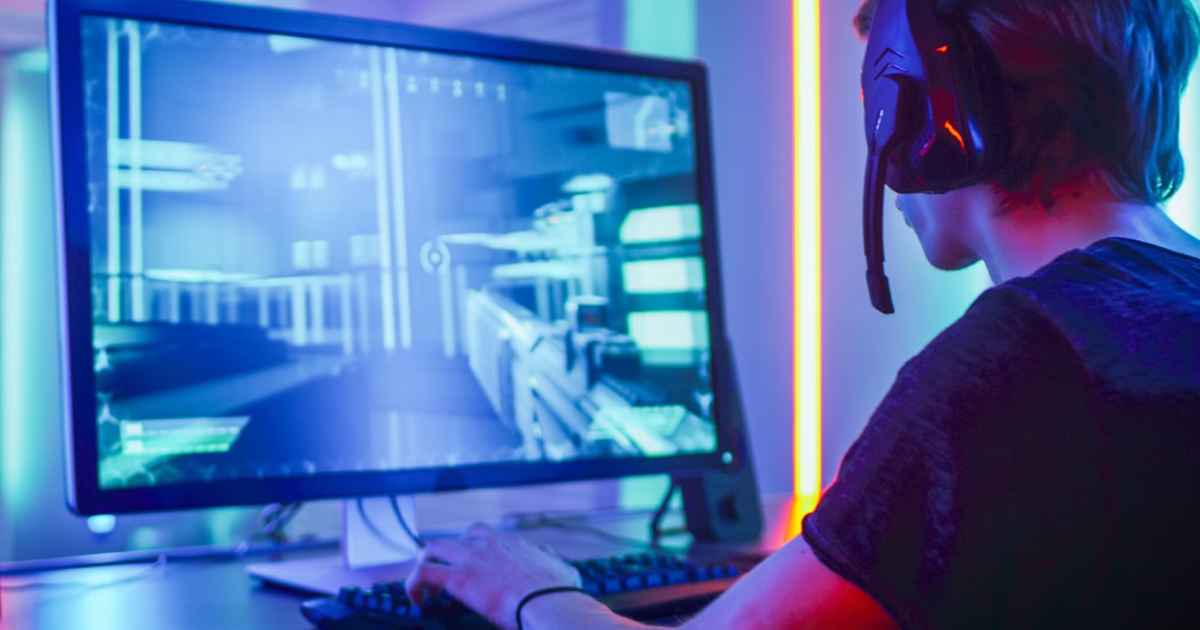
Few things are more frustrating for gamers than when a PC game suddenly crashes right in the middle of an exciting mission or boss fight. Whether it’s a black screen, freezing, or a full desktop crash, these issues can ruin your gaming experience. The good news is that most crashes have simple causes — and even simpler fixes. In this post, we’ll go through the most common reasons PC games crash and what you can do to get back to gaming smoothly.
1. Update Your Graphics Drivers
Outdated or corrupted graphics drivers are one of the top reasons games crash. Your GPU (graphics processing unit) relies on drivers to communicate with your system, and when those drivers are outdated, games can misbehave.
Fix:
-
Visit the official website for your graphics card manufacturer — NVIDIA, AMD, or Intel.
-
Download and install the latest driver for your specific GPU model.
-
Restart your computer after installation to apply the update.
Pro tip: You can also use software like GeForce Experience (NVIDIA) or AMD Adrenalin to automatically check for driver updates.
2. Check for Game Updates or Patches
Game developers often release patches to fix bugs, improve performance, and address stability issues. If your game keeps crashing, it might be due to a known bug that’s already been fixed in a newer update.
Fix:
Open your game launcher (like Steam, Epic Games Store, or Xbox App) and check if there are pending updates. Make sure the game and launcher are both fully updated before launching again.
3. Verify Game Files
Corrupted or missing game files can also cause frequent crashes. Luckily, most launchers have built-in tools to verify and repair game files automatically.
Fix:
-
On Steam: Right-click the game > Properties > Installed Files > “Verify integrity of game files.”
-
On Epic Games Launcher: Click the three dots next to the game and select “Verify.”
-
On Battle.net: Click the gear icon next to the game and choose “Scan and Repair.”
This process can take a few minutes but often solves random crashes instantly.
4. Adjust In-Game Graphics Settings
Sometimes, your PC might simply be struggling to handle the game’s graphics load. Pushing ultra settings on a mid-range setup can lead to overheating or sudden crashes.
Fix:
-
Lower graphics settings such as textures, shadows, and anti-aliasing.
-
Disable features like ray tracing or DLSS/FSR if you’re facing instability.
-
Try running the game in windowed or borderless windowed mode.
5. Monitor System Temperature
Overheating can cause your system to shut down or crash games to prevent hardware damage. This is especially common in laptops or desktops with poor airflow.
Fix:
-
Use tools like MSI Afterburner or HWMonitor to check CPU and GPU temperatures.
-
Clean dust from fans and vents.
-
Ensure your PC is placed in a well-ventilated area.
-
Consider reapplying thermal paste or upgrading your cooling setup if overheating persists.
6. Disable Background Programs
Background applications can conflict with your game or consume system resources, leading to instability.
Fix:
Close unnecessary apps like web browsers, Discord overlays, or recording software before starting your game. You can also use Task Manager (Ctrl + Shift + Esc) to end high-resource processes.
7. Check Your System for Malware or Corruption
Sometimes, the issue isn’t with the game at all. Malware or system file corruption can interfere with performance and stability.
Fix:
-
Run a full antivirus scan.
-
Use Windows System File Checker (sfc /scannow) to repair corrupted system files.
-
Keep your operating system up to date.
8. Reinstall the Game
If none of the above works, your installation may be beyond repair. A clean reinstall often resolves stubborn crash issues.
Fix:
Uninstall the game completely, delete leftover files in the game’s installation directory, and reinstall it fresh from your launcher.
Final Thoughts
Game crashes can be annoying, but they’re rarely permanent problems. In most cases, updating drivers, verifying files, and optimizing your settings can bring your games back to life. Remember to maintain your PC regularly — keep your system clean, drivers updated, and temperatures under control. That way, you’ll spend more time gaming and less time troubleshooting.