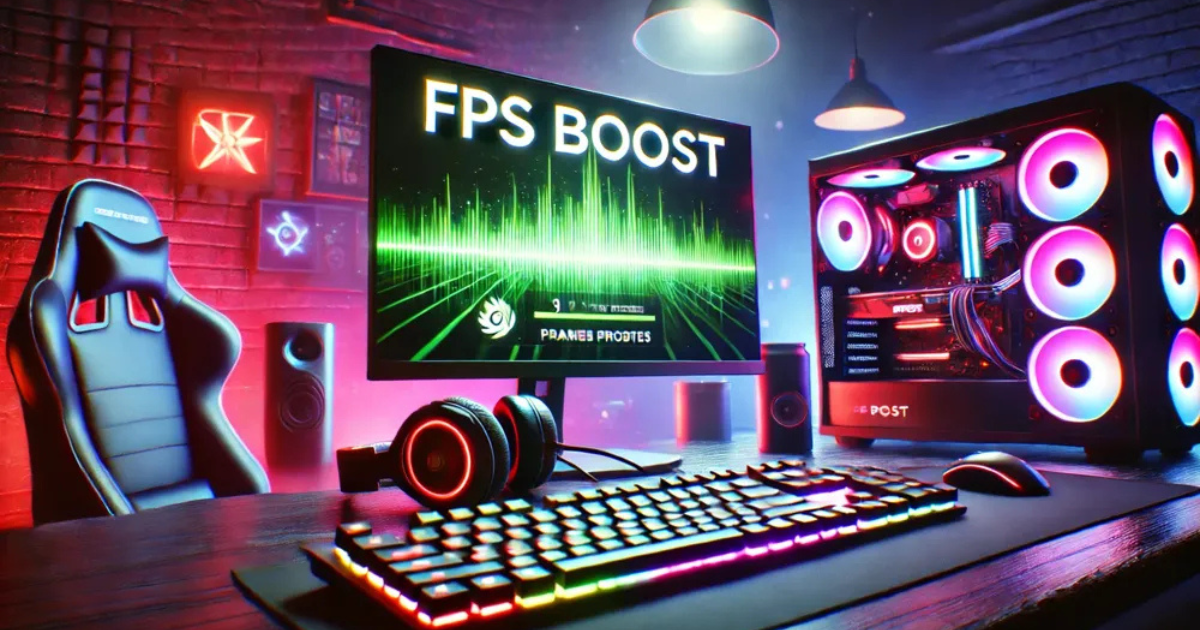
Nothing kills the excitement of a new AAA title faster than stuttering gameplay and low FPS (frames per second). Whether you’re exploring sprawling open worlds, engaging in fast-paced firefights, or enjoying cinematic storylines, performance drops can ruin immersion. Fortunately, improving FPS doesn’t always require a brand-new graphics card. With a few smart tweaks and optimizations, you can boost performance and make your favorite AAA games run smoother than ever.
1. Update Your Graphics Drivers
The first and most crucial step is keeping your graphics drivers up to date. GPU manufacturers like NVIDIA, AMD, and Intel frequently release driver updates optimized for the latest AAA games.
Outdated drivers can cause stuttering, crashes, or lower performance in newer titles.
-
Visit your GPU manufacturer’s website or use their dedicated software (like GeForce Experience or AMD Adrenalin) to automatically download the latest updates.
-
Restart your PC after installing to ensure changes take effect.
2. Optimize In-Game Graphics Settings
Every AAA game comes with advanced graphics options that can drastically affect performance. To strike the perfect balance between visuals and smooth gameplay, adjust these key settings:
-
Shadows and Reflections: Lowering them often provides a big FPS boost with minimal visual loss.
-
Anti-Aliasing: Turn it down or use performance-friendly options like FXAA.
-
Texture Quality: Keep it high only if you have enough VRAM (video memory).
-
V-Sync: Disable it if you experience input lag, but enable it if screen tearing is an issue.
Experiment with settings one at a time and monitor how each change affects your frame rate.
3. Use the Right Resolution and Display Mode
Playing at your monitor’s native resolution gives the sharpest image, but it can be demanding. Dropping from 4K to 1440p or 1080p can drastically increase FPS without ruining visual quality.
Additionally, switch to Fullscreen mode instead of Windowed or Borderless modes, as it allows your system to dedicate more resources to the game.
4. Close Background Applications
Many background programs—like browsers, launchers, or even Discord overlays—consume valuable CPU and RAM.
Before starting your game:
-
Press Ctrl + Shift + Esc to open the Task Manager.
-
End unnecessary tasks, especially those using high CPU or memory.
This frees up system resources, ensuring more power goes directly to your game.
5. Enable Game Mode and Hardware Acceleration
If you’re on Windows 10 or 11, enable Game Mode in settings. This feature automatically prioritizes gaming performance and reduces background activity.
You can also turn on Hardware-accelerated GPU scheduling under graphics settings, which can help reduce latency and slightly improve FPS on supported systems.
6. Adjust Power and Performance Settings
Your computer’s power plan can limit performance to save energy. Switch to the High Performance or Ultimate Performance mode:
-
Go to Control Panel → Hardware and Sound → Power Options.
-
Select High Performance.
On laptops, keep your device plugged in while gaming to prevent throttling caused by power-saving modes.
7. Overclock (With Caution)
If you’re confident and have proper cooling, overclocking your GPU or CPU can yield noticeable FPS improvements.
Tools like MSI Afterburner make this easier and safer, but proceed carefully — overclocking generates more heat and can shorten hardware lifespan if done improperly. Always monitor temperatures and stability when tweaking performance settings.
8. Update or Optimize Your Storage
AAA games often have huge file sizes and detailed textures. Installing them on an SSD (Solid-State Drive) instead of an HDD significantly reduces loading times and can smooth out texture pop-ins or stutters during gameplay.
If your SSD is nearly full, clean up unnecessary files — a cluttered drive can slow performance.
9. Keep Your System Clean and Cool
Overheating is a silent FPS killer. Dust buildup in fans and vents can cause your CPU or GPU to throttle performance.
-
Regularly clean your PC or laptop using compressed air.
-
Ensure proper airflow and consider using a cooling pad or additional fans if needed.
Final Thoughts
Improving FPS in AAA games doesn’t always mean spending thousands on new hardware. Small changes—like updating drivers, adjusting graphics settings, or closing background apps—can deliver noticeable boosts.
Ultimately, every system is different, so test and tweak until you find the perfect balance between visuals and performance. With these tips, you’ll enjoy smoother gameplay, faster responses, and an overall better gaming experience — no lag required.