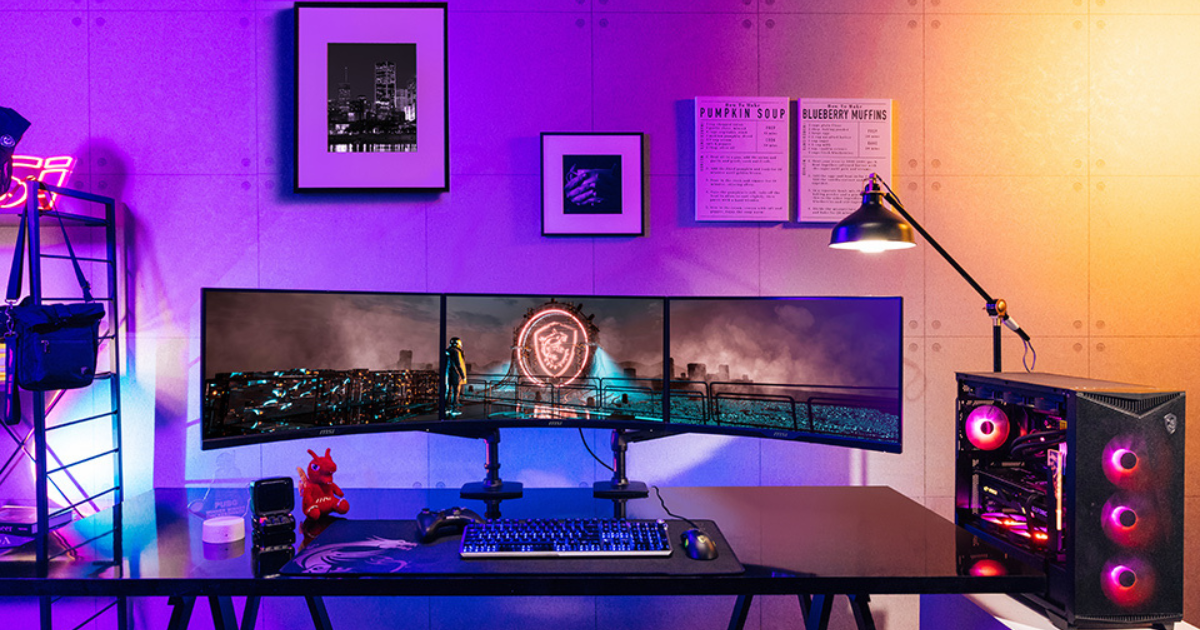
Setting up a dual monitor system can dramatically improve your gaming and streaming experience. Whether you’re a content creator, a competitive gamer, or someone who simply wants better multitasking, having two screens makes everything smoother and more efficient. In this guide, we’ll walk you through everything you need to set up a dual monitor layout for optimal gaming and streaming.
Why Use Two Monitors?
Streamers often rely on two monitors because they allow you to play your game on one screen while using the other for stream controls, such as OBS Studio, alerts, chat, music, or social media. Instead of constantly minimizing your game, everything is visible at a glance. This setup also improves productivity, especially when editing videos, creating thumbnails, or managing multiple applications.
Step 1: Check Your Graphics Card
Before connecting a second monitor, make sure your PC can support it. Most modern graphics cards (NVIDIA GTX/RTX and AMD Radeon series) come with at least two output ports such as:
-
HDMI
-
DisplayPort
-
DVI
-
USB-C (on some laptops and GPUs)
Check the back of your GPU for available ports and match them with your monitors. If ports differ, you may need an adapter (e.g., DisplayPort to HDMI).
Tip: For gaming, using DisplayPort or HDMI 2.0+ provides the best refresh rate and resolution.
Step 2: Connect Your Second Monitor
Once you’re sure you have compatible ports:
-
Power off your PC (optional but recommended).
-
Plug the second monitor into your GPU.
-
Power on your PC and both monitors.
Most systems automatically detect the new display. If not, you can configure it manually in your operating system settings.
Step 3: Configure Display Settings (Windows & macOS)
On Windows:
-
Right-click on your desktop and choose Display settings.
-
You’ll see both monitors shown as numbered screens.
-
Select Extend these displays under Multiple displays.
-
Drag the monitor icons to match their physical position on your desk (left or right).
-
Choose your main gaming monitor and select Make this my main display.
On macOS:
-
Go to System Settings > Displays.
-
Click Arrange and position the monitors.
-
Drag the white menu bar to your main display.
Step 4: Optimize Your Monitors for Gaming and Streaming
1. Set Your Gaming Monitor as Primary
This ensures the highest refresh rate and priority performance for your main game screen.
2. Adjust Resolution & Refresh Rates
Higher-end gaming monitors may support 120Hz, 144Hz, or even 240Hz. Make sure:
-
Your main gaming screen is set to its highest refresh rate
-
Your second monitor is set to its preferred resolution (1080p is common)
3. Calibrate Colors
If you’re streaming, having accurate colors on your primary monitor helps ensure your viewers see high-quality visuals.
Step 5: Configure Your Streaming Software (OBS or Streamlabs)
A dual monitor setup works best when paired with proper streaming software. Here’s how to optimize it using OBS Studio:
-
Open OBS Studio.
-
Drag the OBS window to your second monitor.
-
Set your game to capture the primary monitor using Game Capture or Display Capture.
-
Set up sources like webcam, alerts, overlays, and audio mixers.
-
Keep your chat, music, and stream status open on the second screen.
This way, your gameplay stays uninterrupted while you monitor stream activity with ease.
Step 6: Physical Setup and Cable Management
A clean workspace helps you stay focused. Here are tips for setting up your monitors physically:
-
Use a dual monitor stand for better height adjustment and desk space
-
Align your monitors at the same height for comfort
-
Angle them slightly inward for better visibility
-
Use cable clips or Velcro to tidy up power and display cables
These small adjustments make a huge difference during long gaming or streaming sessions.
Final Thoughts
Setting up a dual monitor system for gaming and streaming isn’t just a luxury—it’s a massive upgrade in productivity and convenience. With two screens, you can game on one display while managing your stream, chat, or music effortlessly on the other. Whether you’re a beginner or a seasoned streamer, this setup gives you more control, better workflow, and a smoother overall experience.