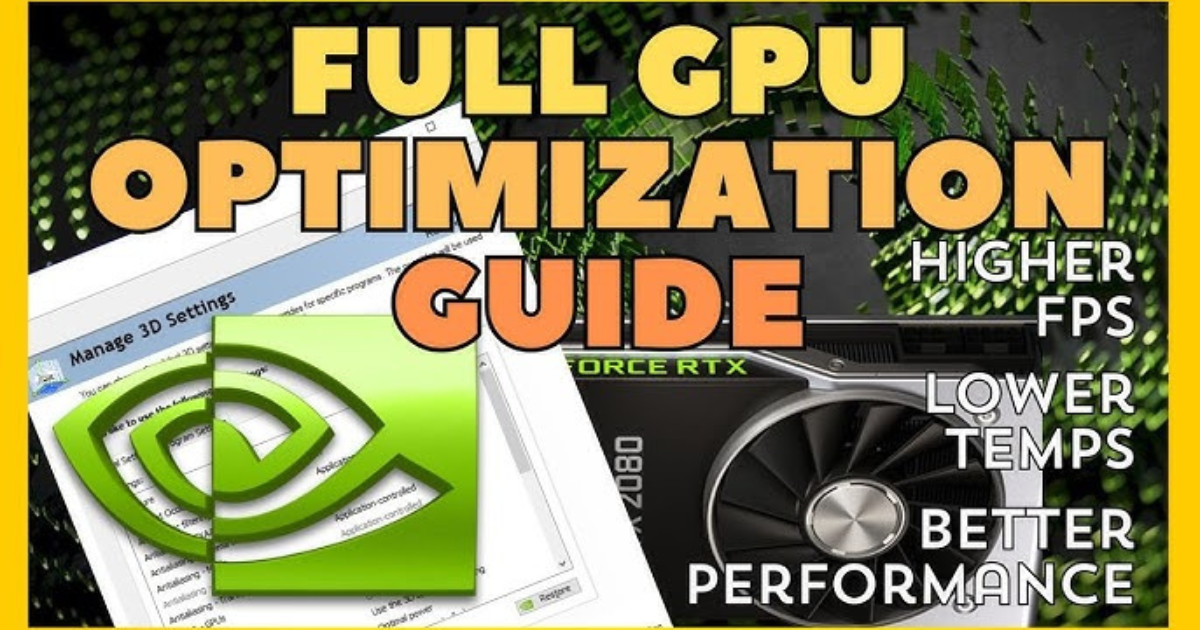
Building or buying your first gaming PC is exciting — but once you’ve got that shiny graphics card installed, the next challenge begins: optimizing it for the best gaming performance. Even powerful GPUs can underperform if they’re not set up correctly. Whether you’re running an RTX 4070 or an older GTX card, this GPU optimization guide for new gamers will help you squeeze every frame and visual detail out of your setup.
1. Update Your Graphics Drivers Regularly
Your GPU drivers are the bridge between your hardware and your games. Outdated drivers can cause crashes, stuttering, and low FPS. Both NVIDIA and AMD release regular updates that include performance boosts and bug fixes for the latest titles.
-
For NVIDIA users: Use GeForce Experience to automatically download and install the latest Game Ready drivers.
-
For AMD users: The Radeon Adrenalin software offers one-click updates and performance optimization profiles.
Pro tip: When updating drivers, choose the “clean installation” option to remove leftover settings from old versions.
2. Adjust In-Game Graphics Settings
Every game offers a mix of performance and visual settings. For new gamers, understanding these can be overwhelming — but a few tweaks make a big difference.
-
Resolution: Play at your monitor’s native resolution (usually 1080p or 1440p). Lowering resolution increases FPS but sacrifices sharpness.
-
V-Sync: Disable it for smoother input response; enable it only if you experience screen tearing.
-
Shadows, Reflections, Anti-Aliasing: These are performance-hungry settings. Reducing them can add 10–20 extra frames per second.
-
DLSS or FSR: If available, enable these AI-based upscaling technologies (from NVIDIA and AMD respectively) to get better frame rates with minimal loss in image quality.
The key is balance — aim for smooth performance (60 FPS or higher) while keeping visuals crisp.
3. Use Your GPU’s Control Panel Settings
Both NVIDIA and AMD offer dedicated control panels that can fine-tune performance globally or per game.
For NVIDIA GPUs:
-
Open the NVIDIA Control Panel → Manage 3D Settings.
-
Set Power Management Mode to “Prefer Maximum Performance.”
-
Adjust Texture Filtering Quality to “High Performance.”
-
Enable Low Latency Mode for more responsive gameplay.
For AMD GPUs:
-
Open Radeon Settings → Gaming → Global Graphics.
-
Set Radeon Chill and Radeon Boost according to your needs.
-
Turn on Enhanced Sync to minimize stuttering without full V-Sync.
4. Monitor Your GPU Temperature and Usage
High temperatures can throttle your GPU, reducing performance and lifespan.
Use tools like MSI Afterburner, GPU-Z, or your GPU’s native software to monitor temperature, usage, and clock speeds.
-
Keep GPU temps below 80°C for optimal performance.
-
Clean dust from your PC case and ensure good airflow.
-
Reapply thermal paste every couple of years if you notice overheating.
Tip: If your GPU runs too hot, consider adjusting fan curves in Afterburner for more aggressive cooling.
5. Optimize Your Power Settings and Windows Configuration
Windows can sometimes limit GPU performance to save energy. To avoid that:
-
Go to Control Panel → Power Options → High Performance.
-
In Windows 11, search for Graphics Settings → Hardware-Accelerated GPU Scheduling and turn it on.
-
Enable Game Mode to prioritize gaming tasks over background processes.
These small tweaks ensure your GPU is always running at full power when gaming.
6. Overclock — But Carefully
Overclocking can boost FPS by pushing your GPU beyond its factory limits, but it must be done safely. Use software like MSI Afterburner to gradually raise your GPU’s core clock and memory speed while stress-testing for stability.
Always watch temperatures and avoid aggressive settings that can cause crashes. Even a modest overclock (3–5%) can improve performance noticeably without risking damage.
7. Keep Your System Balanced
A GPU alone doesn’t guarantee top performance — it needs support from your CPU, RAM, and storage. Make sure your other components aren’t bottlenecking your system:
-
Close unnecessary background apps.
-
Use an SSD for faster loading times.
-
Make sure your power supply can handle your GPU’s requirements.
Final Thoughts
Optimizing your GPU is less about raw power and more about smart tuning. By keeping drivers updated, fine-tuning settings, managing temperatures, and using built-in tools effectively, you’ll get the most out of your graphics card — no matter its price tag.
For new gamers, these steps can transform your experience from “barely playable” to “buttery smooth.” With the right tweaks, every frame counts — and now you’re ready to make each one shine.