
Few things are as frustrating for gamers as losing hours—or even months—of progress in a mobile game. Whether it’s due to a phone crash, accidental deletion, or switching to a new device, losing your game data can be heartbreaking. Thankfully, backing up your mobile game data is simple if you know how.
In this guide, we’ll cover why backups are important, how to back up game data on Android and iOS, and a few pro tips to make sure your progress is always protected.
Why Backing Up Mobile Game Data Matters
Mobile games often store data locally on your phone or on cloud servers. If your game progress isn’t connected to a cloud account, you risk losing everything when you uninstall the app or change devices.
Regular backups ensure you can:
-
Switch phones easily without losing progress.
-
Recover from crashes or factory resets.
-
Sync gameplay between multiple devices (like tablets or emulators).
-
Avoid losing in-game purchases that depend on save data.
1. Back Up Game Data on Android
Android users have several methods to keep their data safe.
A. Use Google Play Games Cloud Save
Most Android games link to Google Play Games for automatic cloud saves.
-
Open your game and check if it’s linked to your Google Play account.
-
Ensure you’re signed in to the same account on all devices.
-
When reinstalling the game, your progress usually restores automatically.
Tip: Look for the green controller icon that says “Google Play Games” when you first open a game—it means the cloud save feature is supported.
B. Use Your Game Account (Third-Party Logins)
Many online games use dedicated accounts:
-
Supercell ID for games like Clash of Clans or Brawl Stars.
-
Facebook/Apple/Email logins for games like PUBG Mobile or Call of Duty Mobile.
Make sure your game progress is linked to one of these accounts, not just local storage.
C. Manual Backup via Local Files
For games that don’t use cloud saves:
-
Connect your phone to a PC via USB.
-
Navigate to Android > Data > [Game Folder].
-
Copy the folder to your computer or an external drive.
This works best for offline games that store data locally. However, note that some modern Android versions restrict access to app folders.
2. Back Up Game Data on iPhone (iOS)
A. Use iCloud Backup
Apple makes cloud backup seamless:
-
Go to Settings > [Your Name] > iCloud > iCloud Backup.
-
Enable iCloud Backup.
-
When your iPhone is plugged in and connected to Wi-Fi, it automatically saves app data, including supported games.
When you set up a new iPhone, restoring from iCloud will bring back your game progress—provided the game supports iCloud saves.
B. Use iTunes (or Finder) Backup
If you prefer offline backups:
-
Connect your iPhone to your PC or Mac.
-
Open iTunes (or Finder on macOS Catalina and later).
-
Choose Back Up Now.
-
Make sure to enable Encrypt iPhone Backup to save passwords and app data.
This creates a full device backup—including games—that you can restore anytime.
3. Check In-Game Cloud Options
Some games have built-in cloud features separate from system accounts.
-
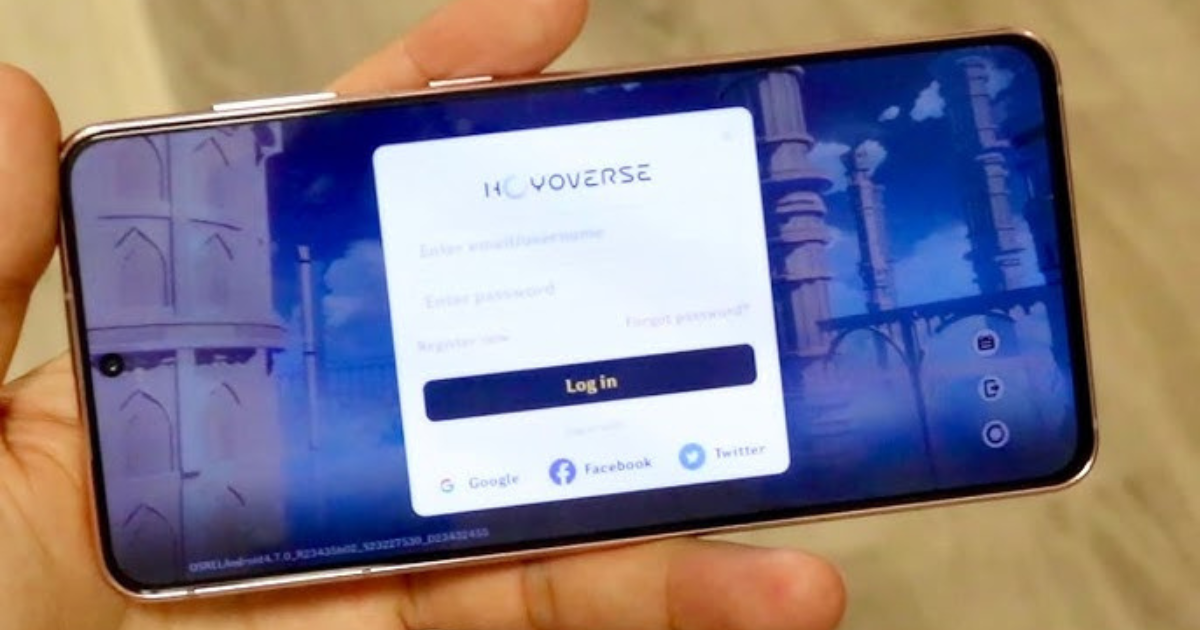
Example: Genshin Impact and AFK Arena use their own servers.
-
Always look in-game for “Account,” “Link,” or “Cloud Save” options.
Linking your progress to an email, Apple ID, or Facebook account ensures it’s stored safely online.
4. Pro Tips to Keep Data Safe
-
Regularly update your backups—especially before switching devices.
-
Use the same account (Google, Apple, or game ID) across all your devices.
-
Avoid third-party backup apps unless you trust the source; some can cause data corruption.
-
Check sync settings after reinstalling to confirm your progress restored correctly.
Final Thoughts
Losing game progress can feel devastating, but with a few preventive steps, it’s entirely avoidable. Whether you rely on Google Play Games, iCloud, or manual backups, the key is consistency.
Encourage your readers to take five minutes today to back up their favorite games—it’s a small effort that can save countless hours of progress. After all, no gamer wants to start over from level one!